
Customer Intelligence
Customer Intelligence: Every Customer, Every Conversation, One Answer
ConnectLoop's Customer Intelligence brings together everything Lia and your team know about each customer. Ask questions in plain language, see what every conversation left open, and track where each customer sits in your pipeline.
One answer across every conversation, every channel and every rep, with the records behind it.
Included on every plan, including Free · Google CASA Tier 2 Verified · Official Meta Business Partner
The problem
Customer Knowledge Is Spread Across Chats, Calls and Reps
A buyer talks to your AI agent on the website, replies on WhatsApp, then joins a call with a rep. Each conversation holds something important, and most of it sits where no one looks again.
Answers
Simple Questions Take an Afternoon
“Who mentioned a competitor this month?” means reading chat logs, call notes and emails one by one, for every rep and every channel.
Follow-up
Promises Slip Between Conversations
A buyer asks something no one answers, or a rep promises a pricing sheet on a call. A week later, the buyer is still waiting.
Pipeline
Deals Sit Still Without Anyone Noticing
A lead stays in Proposal for two weeks. Nothing flags it, so the first sign of trouble is a deal that has gone quiet.
The solution
Customer Intelligence Turns Every Conversation Into Something You Can Act On
Three pages under one menu: Ask, Action Items and Pipeline. Each one is built from what your AI agent and your team have on record.
01
Ask in Plain Language
Type a question such as “Who is waiting on us?” and get one answer across every customer, conversation, channel and rep.
02
Answers With Their Sources
Every answer lists the customers, conversations, calls, action items, appointments and stages it came from. Click Show what was said to read the original quote.
03
Focus on One Customer
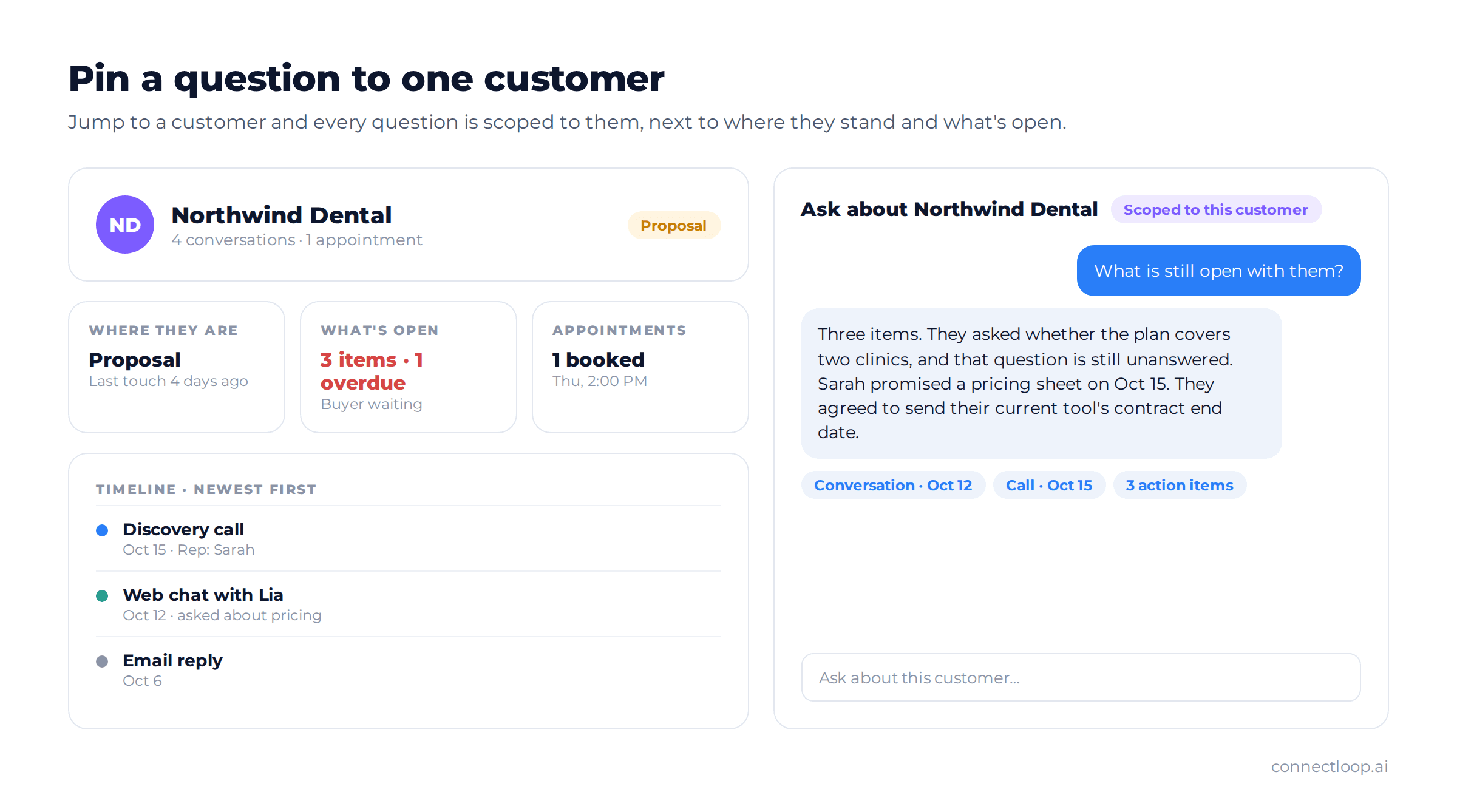
Jump to a customer and every question is scoped to them, next to their stage, open items, appointments and full timeline.
04
Action Items From Every Conversation
Unanswered questions, promises, meeting actions and escalations are picked up when each conversation or call closes.
05
Buyer Waiting Comes First
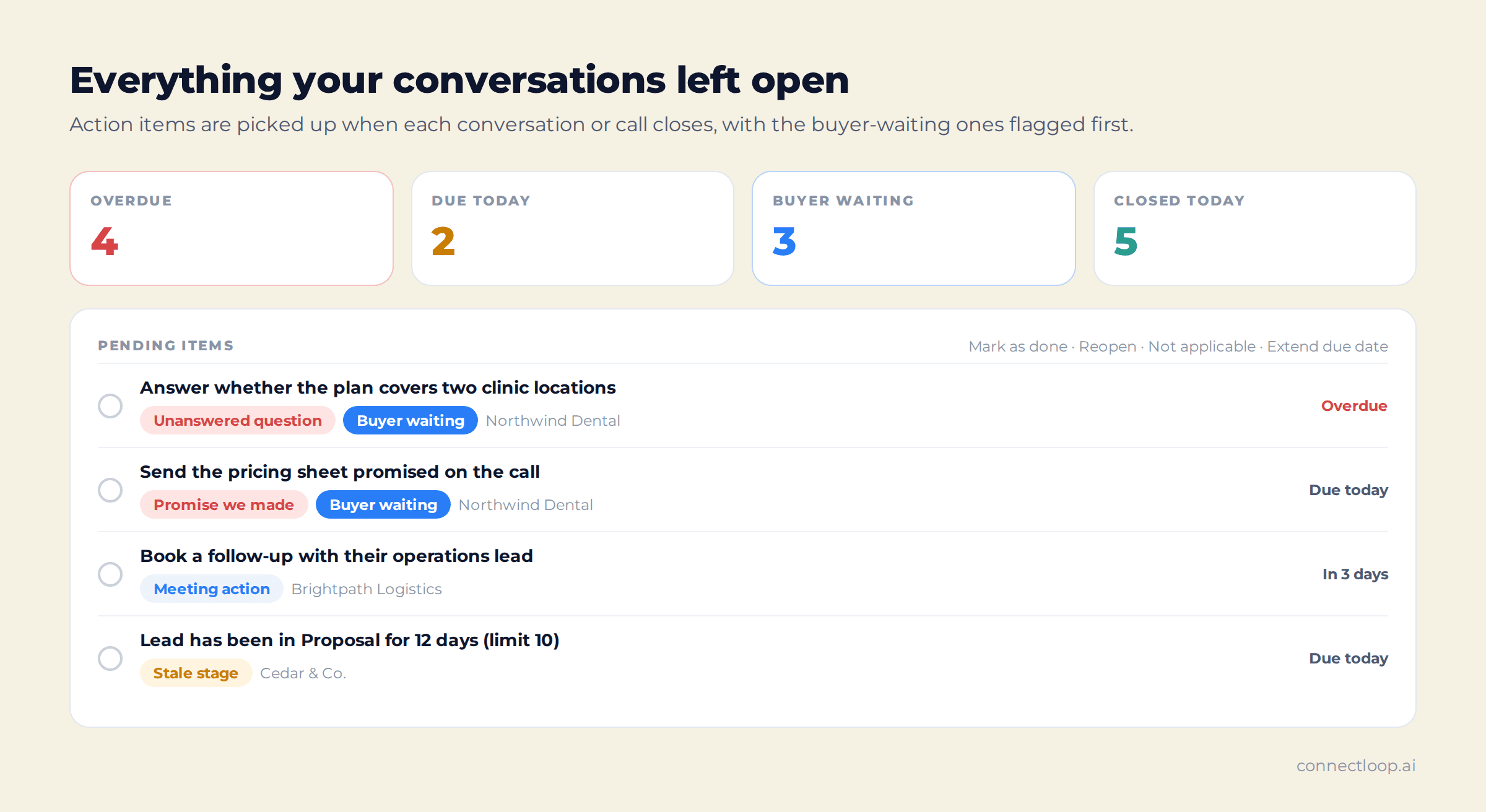
Items where the customer is waiting on your team are tagged Buyer waiting, so the most urgent follow-ups are always at the top.
06
A Pipeline With Your Own Stages
Define the stages your team works with, drag customers between them, and get a Stale stage item when a lead sits too long.
Ask
Ask Your Customers Anything, Across the Whole Book
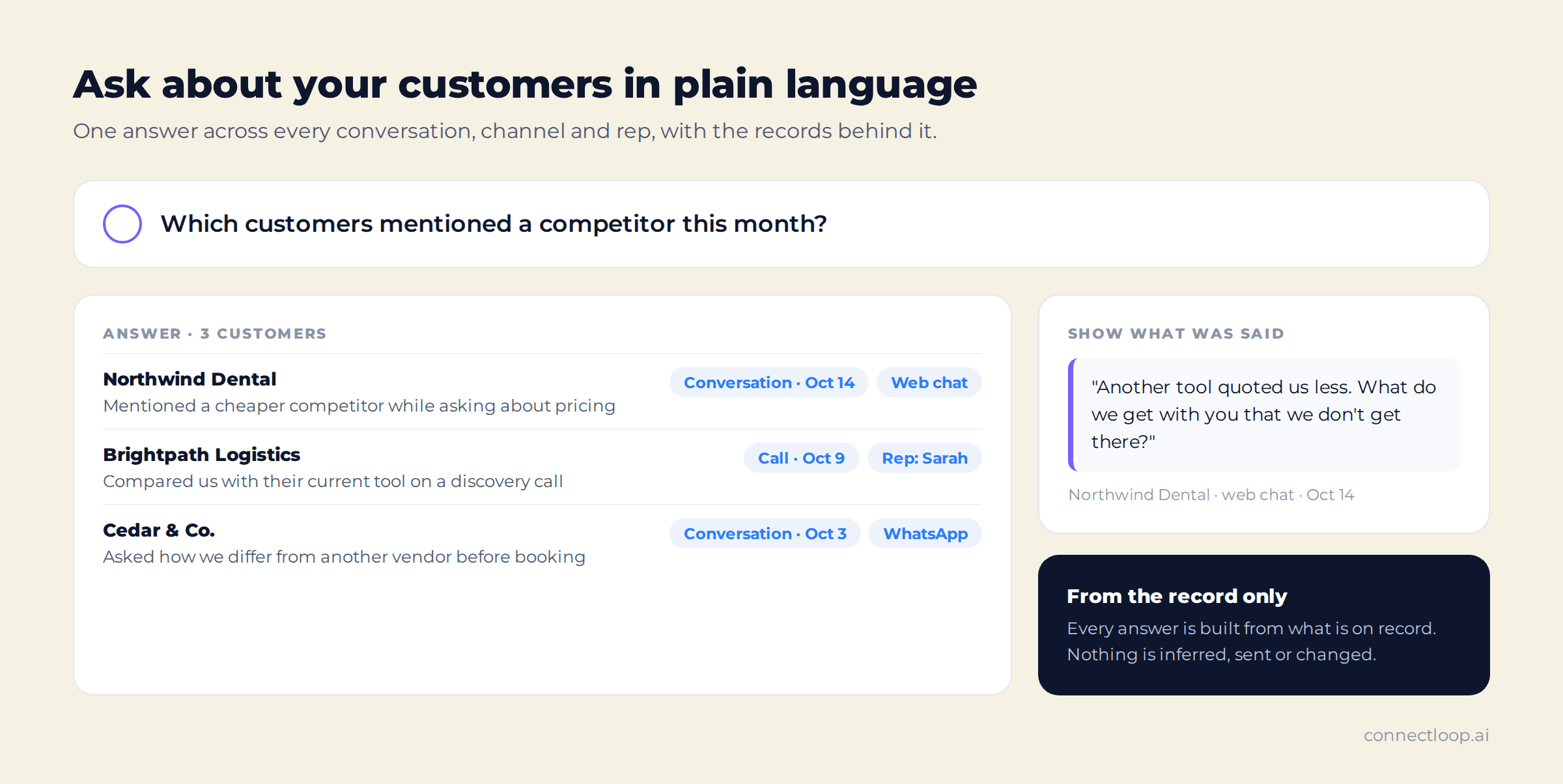
Ask lets you question your customer records the way you would ask a colleague. One answer covers every conversation, every channel and every rep, and shows the records it was built from.
Ask across all customers
Type a question into the ask bar and get one answer for your whole customer base.
Or jump to one customer
Type a customer's name and choose Jump to, and the question is pinned to them.
See the source
Each answer lists its records. Click Show what was said to read the buyer's own words.
From the record only
Every answer comes from what is on record. Nothing is inferred, sent or changed.
Questions Teams Ask Every Week
| Question | What it helps you do |
|---|---|
| Who is waiting on us? | Clear the follow-ups that matter most before the buyer goes quiet |
| Which customers mentioned a competitor this month? | Spot deals at risk and prepare the right comparison |
| Which customers have unresolved objections? | Find conversations that need a better answer or a call |
| Who brought up pricing comparisons in the last 30 days? | Give sales the context before the next pricing conversation |
| Which customers in the Proposal stage haven't been contacted this week? | Keep late-stage deals moving |
| What is still open with [customer name]? | Prepare for a call in seconds instead of reading every thread |
One customer view
Everything About One Customer, Next to a Chat That Knows Them
When you jump to a customer, the chat is scoped to them, so you don't need to name them in your questions. A side panel shows where they stand and what's still open.
- Snapshot: account, company and number of conversations
- Where they are: pipeline stage and last touch
- What's open: open action items, how many are overdue, and whether the buyer is waiting on you
- Appointments: every booked meeting
- Timeline: every conversation, newest first
- Action items tab: mark items done, reopen them, mark them not applicable or extend the due date
Action Items
Every Open Loop, Picked Up Automatically
Action Items lists everything your conversations left open, across every customer. Items are created when each conversation or call closes, and items Lia promised are assigned to the rep on the account, or to the team queue if there is no rep.
| Source | What it means |
|---|---|
| Unanswered question | The customer asked something that wasn't answered (Buyer waiting) |
| Promise we made | Lia or a rep committed to doing something (Buyer waiting) |
| Buyer owes us | The customer agreed to do something |
| Meeting action | A follow-up agreed on a sales call |
| Escalation open | The customer asked for a human or an escalation |
| Stale stage | The customer has stayed in a stage longer than its time limit |
| Manual task | Added by your team |
Priorities
Summary Tiles and Filters
Overdue, Due today, Buyer waiting and Closed today at the top. Filter by due date, status, customer and source.
Due dates
Clear Deadlines, Your Time Zone
Items without a set due date are due 7 days after they're created. Overdue and due today follow your company time zone.
Your call
Your Changes Always Stand
Once you mark an item done, not applicable or change its due date, the AI won't change it again.
Working an item
Close the Loop in One Click
| Action | What it does |
|---|---|
| Mark as done | Closes the item |
| Reopen | Makes a closed item open again |
| Not applicable | Closes an item that doesn't apply |
| Extend due date | Tomorrow, In 3 days, Next week, In two weeks, or pick a date. The new date counts from today. |
Two tabs: Action Items shows every item on record, and Pending Items shows only what still needs attention.
Pipeline
See Where Every Customer Sits, by Stage
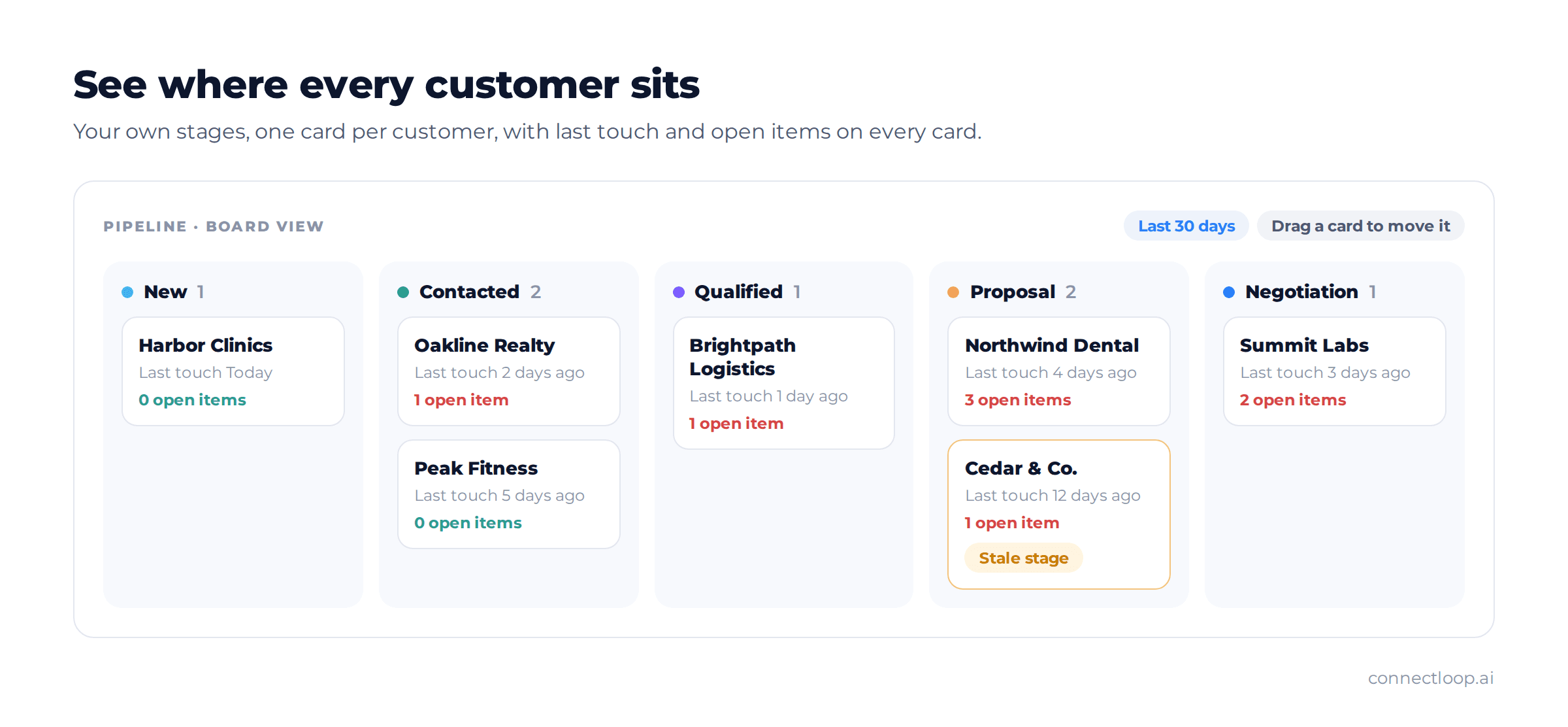
Pipeline shows every customer in the stages your team defines, such as Qualified or Proposal. Switch between a Board with one column per stage and a List with customer, stage, last touch and open items.
Your own stages
Add, rename or delete stages, and set a default stage for new customers.
Move customers easily
Drag a card to another column or use the Move to menu.
Every card tells you more
Last touch date and number of open items on each customer.
Focus by time
Filter by All time, Last 7, 30 or 90 days. Each column shows how many customers are hidden.
Stale Stage Alerts, With Sensible Defaults
When a lead stays in a stage longer than its limit, a Stale stage action item is created so the deal gets attention.
| Stage | Default time limit |
|---|---|
| Contacted | 14 days |
| Qualified | 10 days |
| Proposal | 10 days |
| Negotiation | 14 days |
Every Answer Comes From What Is on Record
Customer Intelligence reads your conversations, calls, action items, appointments and pipeline stages. It shows its sources with every answer, so your team can check the buyer's own words before acting.
- Sources on every answerCustomers, conversations, calls and the original quote.
- Read-only answersNothing is inferred, sent or changed by asking a question.
- Real conversations onlyTest-mode conversations from Live Test never create action items.
Getting started
Set Up Customer Intelligence in Five Steps
- 1
Open Customer Intelligence
Find it in the left sidebar, with Ask, Action Items and Pipeline underneath.
- 2
Add your stages
In Pipeline, click Add stage for each stage your team uses, and choose a default.
- 3
Set your time zone
Set your company time zone in the Company Profile, so due dates are right.
- 4
Ask your first question
Try “Who is waiting on us?” in the ask bar and open the records behind the answer.
- 5
Work the list
Open Pending Items each morning and start with Buyer waiting.
Questions
Frequently Asked Questions
Customer intelligence is what a business knows about each customer, gathered from every interaction and organised so the team can act on it. In ConnectLoop, Customer Intelligence brings together everything your AI agent and your team know about each customer in three pages: Ask, Action Items and Pipeline.
Any question about your customers in plain language, such as "Which customers mentioned a competitor this month?", "Who is waiting on us?" or "What is still open with [customer name]?". One answer covers every conversation, every channel and every rep.
Every answer comes from what is on record: customers, conversations, calls, action items, appointments and pipeline stages. Each answer lists the records it was built from, and Show what was said opens the original quote. Nothing is inferred, sent or changed.
Action items are extracted when each conversation or call closes. They come from unanswered questions, promises made by Lia or a rep, things the buyer agreed to do, meeting actions, open escalations, stale stages and manual tasks added by your team.
Items from Unanswered question and Promise we made are tagged Buyer waiting, because the customer is waiting on your team. These are the highest priority and have their own summary tile.
They are assigned to the rep on the account. If the account has no rep, they go to the team queue.
No. Once you mark an item done, not applicable or change its due date, the AI won't change it again.
A Stale stage item is created when a lead stays in a pipeline stage longer than that stage's time limit. The defaults are 14 days for Contacted, 10 for Qualified, 10 for Proposal and 14 for Negotiation.
Yes. In Pipeline, click Add stage to create each stage your team uses. From a stage's options you can rename it, make it the default for new customers or delete it. Customers in a deleted stage stay in the Customers table with no stage.
All plans: Free, Launch, Growth, Scale and Enterprise. It is available to Company Admins and Workspace Admins.
Also included
Customer Intelligence Works With the Rest of ConnectLoop
- Appointment BookingLia qualifies website visitors and books meetings in the chat. Every booking shows up on the customer.How appointment booking works →
- WhatsApp SalesWhatsApp conversations feed the same customer record, answers and action items.How WhatsApp sales works →
- Sales AssistanceLive call coaching on Google Meet and Zoom. Agreed follow-ups become meeting actions.How sales assistance works →
Know What Every Customer Needs Before They Have to Ask Twice
Ask your first question, clear what the buyer is waiting on, and see every deal by stage. Customer Intelligence is ready the moment your conversations are.
Free plan, no card required · Customer Intelligence included on every plan