
Customer Persona
Customer Persona: A Profile of Every Buyer, Built From Your Sales Calls
ConnectLoop's Customer Persona turns what buyers tell you on Sales Assistance calls into a clear profile of the person and their company. Each detail is backed by the buyer's own words and added only after a rep approves it.
Confirmed facts only, with the source and history of every detail.
Included with Sales Assistance on Scale and Enterprise · Google CASA Tier 2 Verified · Official Meta Business Partner
The problem
What Buyers Tell You on Calls Rarely Makes It Into the Record
A buyer mentions their team size, who signs off on new tools and what they use today. It's useful for every call that follows, but most of it stays in one rep's memory or in notes no one reads again.
Notes
Call Notes Are Incomplete
Reps are busy listening and selling. The details they do write down end up in different places, in different formats.
Accuracy
Records Go Out of Date
The company grows, the contact changes roles, and the record still shows what was true six months ago.
Handoffs
Every New Rep Starts From Zero
When an account changes hands, the next rep asks the buyer the same questions again, and the buyer notices.
The solution
A Customer Persona That Fills Itself From Real Conversations
After each Sales Assistance call, ConnectLoop suggests facts about the buyer and their company. Your rep confirms them in a few clicks, and the profile grows with every conversation.
01
Built From Sales Calls
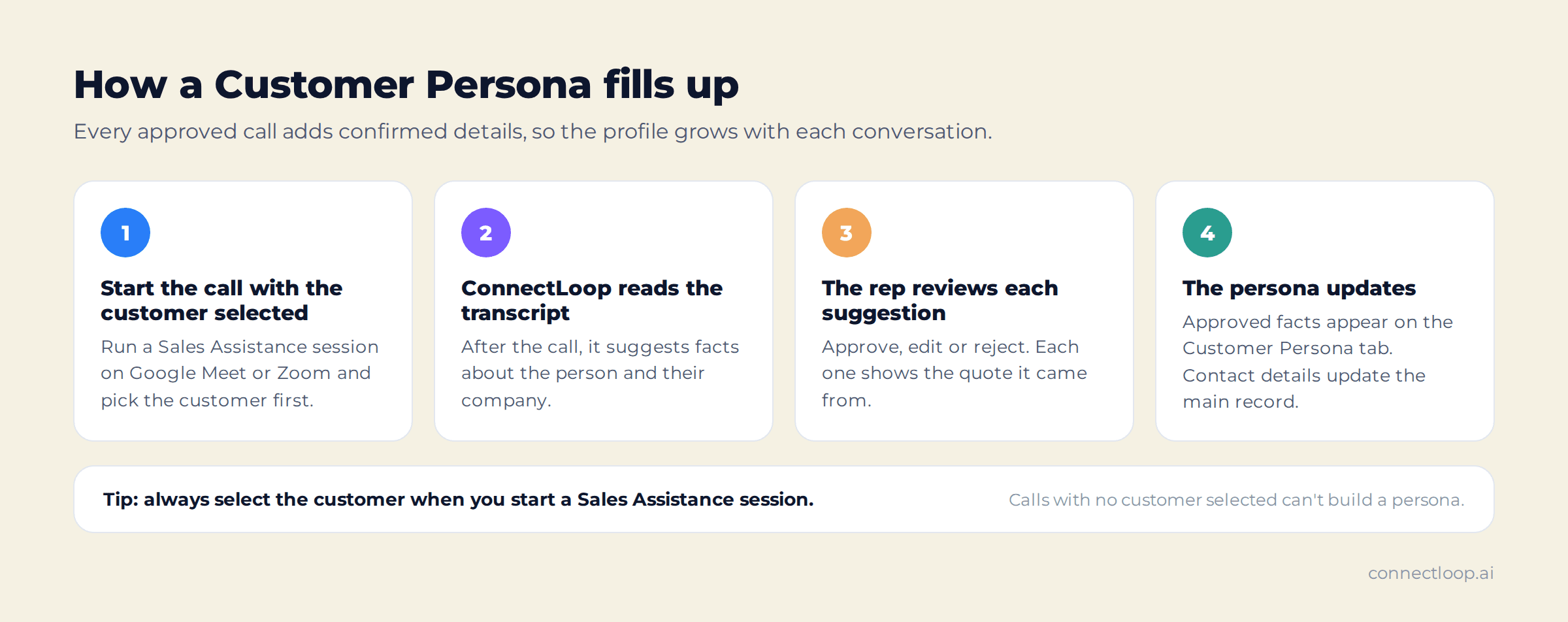
Facts come from what the buyer actually said on Google Meet or Zoom calls run with Sales Assistance.
02
Backed by the Buyer's Own Words
Every suggestion comes with a quote from the call. Facts the buyer never said are dropped automatically.
03
Approved by a Rep
Nothing is added until a rep approves it. Reps can adjust a value before approving, or reject it.
04
Person and Company in One View
Details about the contact and their organization sit side by side on the Customer Persona tab.
05
Source and History for Every Detail
See whether a detail came from a call or was added by hand, when it changed, who updated it, and what it used to be.
06
Contact Details Stay Current
Approved name, email, phone, company, LinkedIn and website update the customer's main record directly.
What it shows
Two Sections: the Person and Their Company
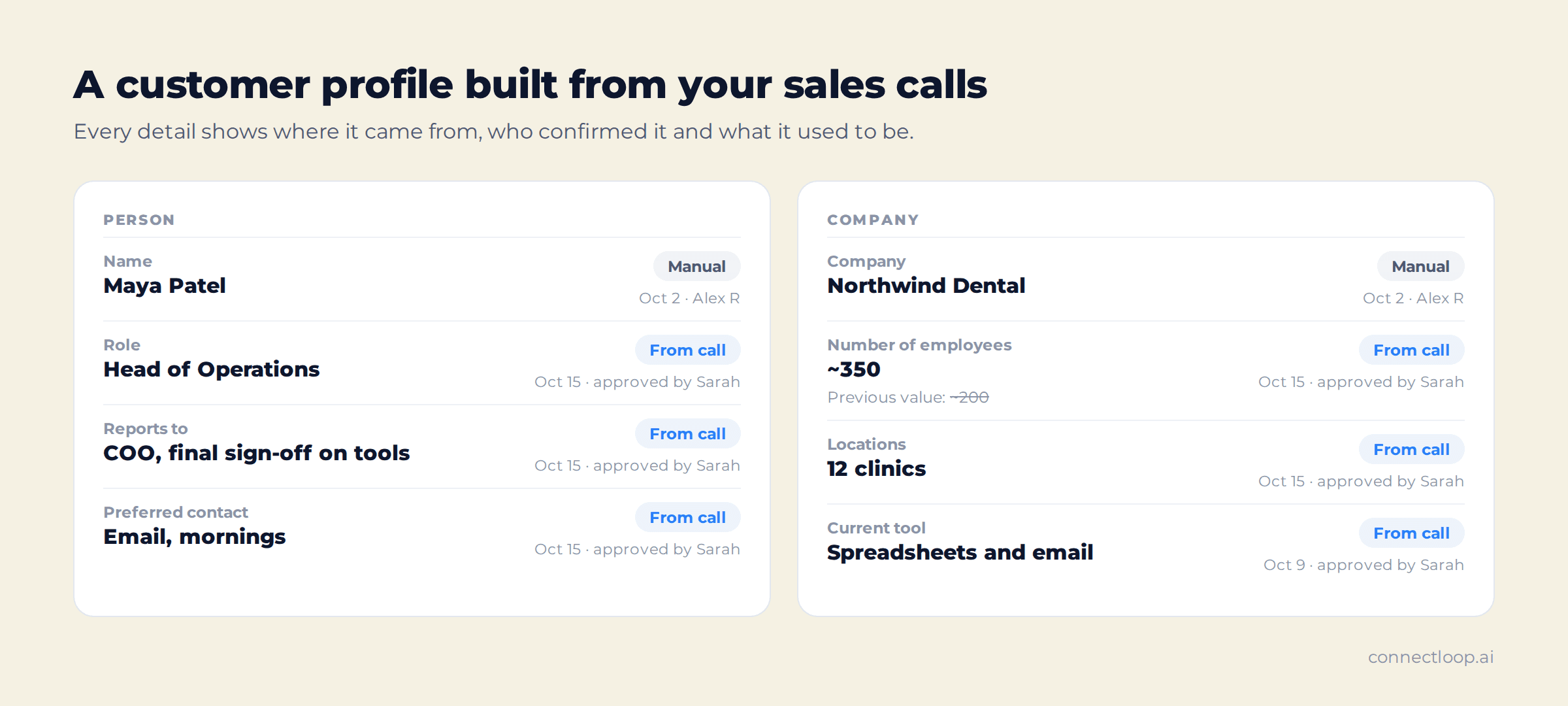
Open any customer from Customers and select the Customer Persona tab. The persona is split into the contact and the organization they work for, so reps see both at a glance before the next call.
Person
Details About the Contact
Such as their role, who they report to and how they like to be reached.
Company
Details About Their Organization
Such as company size, locations and the tools they use today.
| Every detail shows | What it tells you |
|---|---|
| Where it came from | From call, or Manual if your team added it by hand |
| Last updated | When the detail last changed, and who updated it |
| Source | Click to see where the detail was captured |
| Previous values | Earlier versions of the detail, if it has changed |
How it works
From Sales Call to Confirmed Customer Profile
The persona fills up as your team talks to the customer. Each approved call adds confirmed details, so the profile gets richer with every conversation.
Rep approval
Every Fact Is Checked Before It's Saved
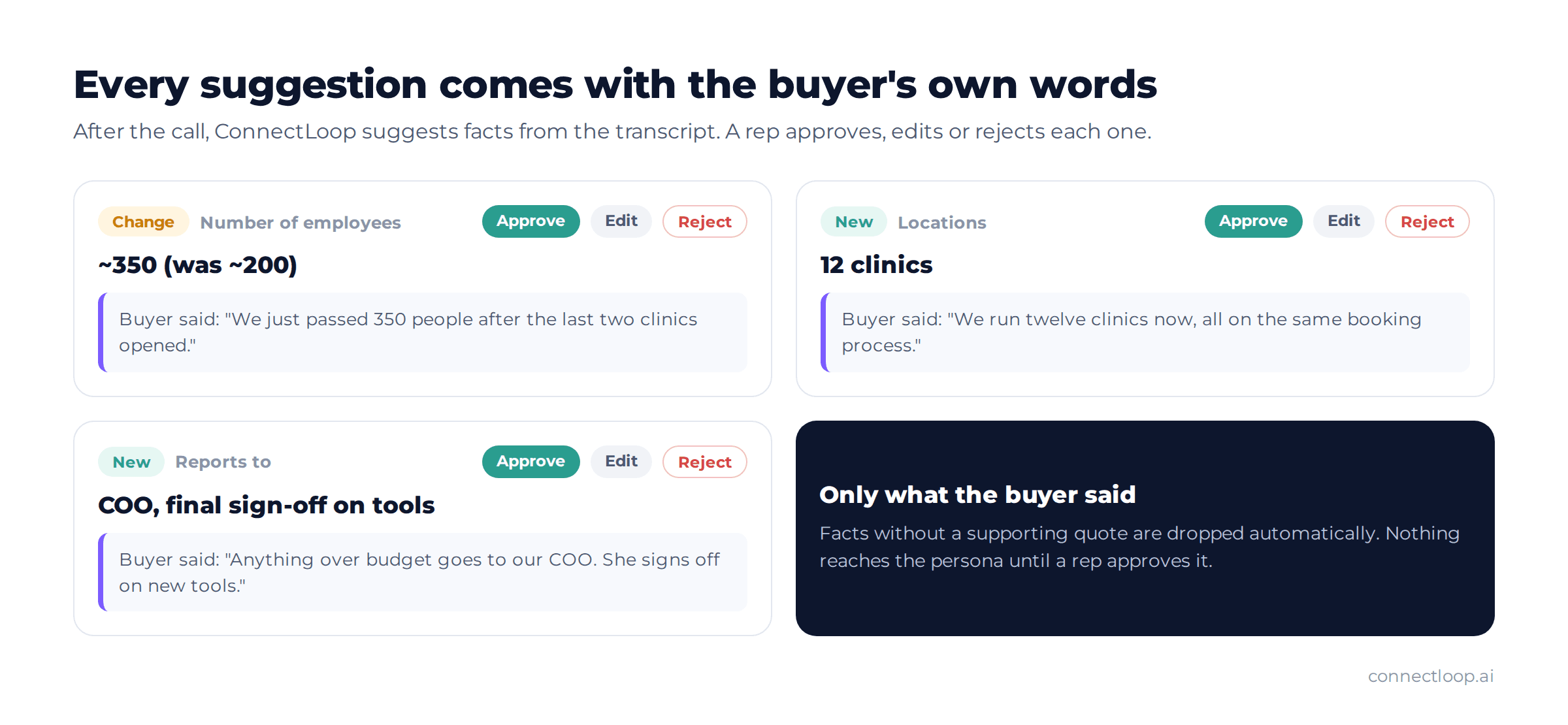
After the call, ConnectLoop reads the transcript and suggests facts such as “Number of employees: ~350” or “Reports to: COO”. Each suggestion shows the quote it came from, so the rep can confirm it in seconds.
New
A fact that isn't on file yet.
Change
An update to a value already on file. The old value is kept under Previous values.
Approve, edit or reject
Reps can adjust a value before approving it, or reject anything that isn't right.
Quotes required
Facts the buyer never actually said are dropped before the rep sees them.
History
Know What Changed, When and Why
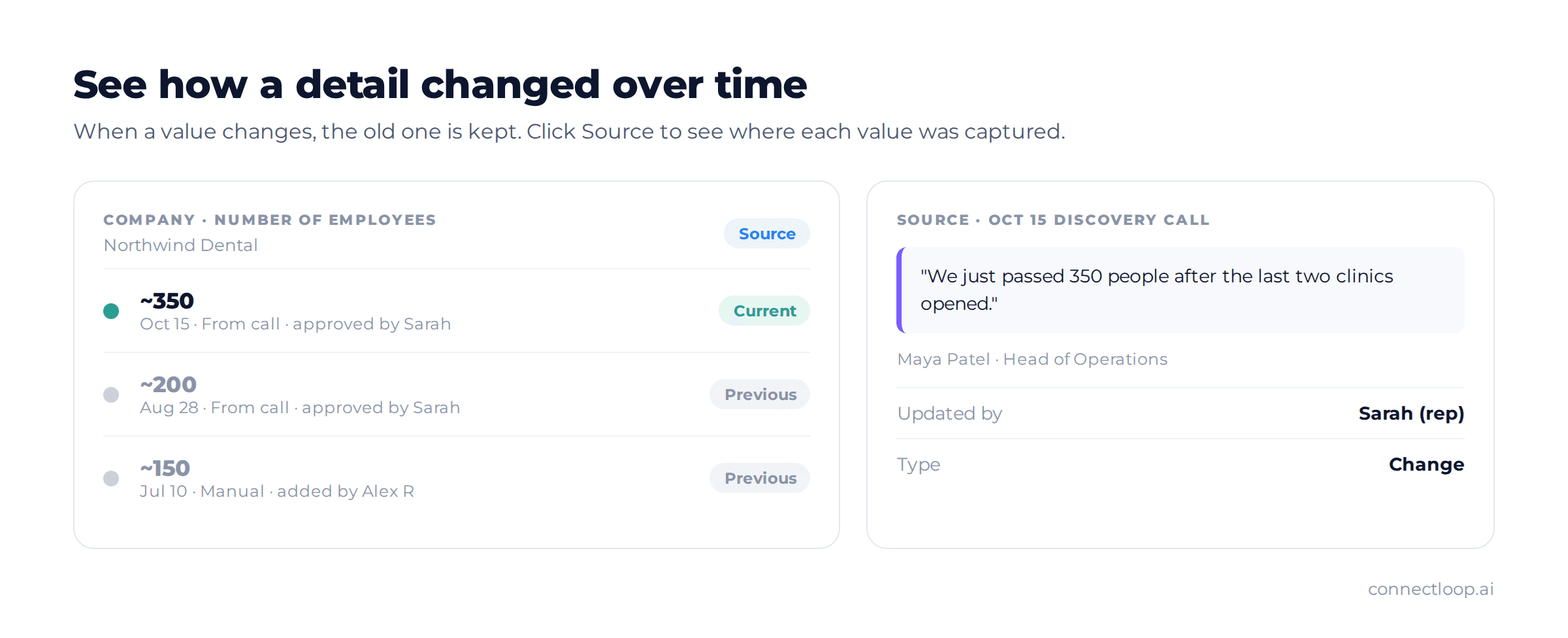
Companies grow and people change roles. When a detail changes, the Customer Persona keeps the earlier value, so your team can see how the account has moved over time.
- Previous values show every earlier version of a detail
- Source opens the call where the detail was captured
- Updated by shows the rep who approved the change, or the teammate who added it by hand
Use cases
How Sales Teams Use Customer Personas
| Moment | How the persona helps |
|---|---|
| Before the next call | Read who the buyer is, who signs off and what they use today in under a minute |
| Account handoff | A new rep picks up the account with confirmed facts instead of starting over |
| Proposals | Size and scope the offer on the buyer's real team size and locations |
| Manager reviews | See what the team actually knows about a deal, and what's still missing |
| Keeping records clean | Contact details update the main record when approved, with no copy and paste |
Confirmed Facts Only, Every Time
A customer profile is only useful if your team can trust it. That's why every detail in a Customer Persona comes from the buyer's own words and is approved by a rep before it's saved.
- Quote-backed suggestionsFacts the buyer never said are dropped automatically.
- Rep approvalNothing reaches the persona until a rep says yes.
- Full historyPrevious values, sources and who updated each detail.
Getting started
Build Your First Customer Persona in Five Steps
- 01
Open Sales Assistance
Start a session for your next Google Meet or Zoom call.
- 02
Select the customer
Pick the customer before the call starts, so the persona can be built.
- 03
Run the call
Talk to your buyer as usual. ConnectLoop works in the background.
- 04
Review the suggestions
Approve, edit or reject each fact, using the buyer's quote to check it.
- 05
Open the persona
Go to Customers, open the customer and select the Customer Persona tab.
Questions
Frequently Asked Questions
A Customer Persona is a profile of a customer and their company. It's built from what comes up on Sales Assistance calls, plus edits your team makes by hand, and holds confirmed information only.
A marketing buyer persona describes a typical customer type. A ConnectLoop Customer Persona describes one real customer: the person you're talking to and their company, based on what they told your team on calls.
From Sales Assistance call transcripts and from manual edits by your team. Each detail is labeled From call or Manual, and you can click Source to see where it was captured.
No. Details from calls are added only after a rep approves them. Each suggestion is backed by a quote of the buyer's own words, and facts the buyer never said are dropped automatically.
Yes. Reps can adjust a value before approving it, approve it as it is, or reject it.
The suggestion is marked Change, and when it's approved the old value is kept under Previous values. The persona shows when each detail was last updated and by whom.
Yes. Approved contact details, including name, email, phone, company, LinkedIn and website, update the customer's main record directly.
No call details have been approved for that customer yet. Run a Sales Assistance call with the customer selected and approve the suggestions afterward. Calls started with no customer selected can't build a persona.
Customer Persona comes with Sales Assistance on the Scale and Enterprise plans.
Also included
Customer Persona Works With the Rest of ConnectLoop
- Sales AssistanceLive cue cards on Google Meet and Zoom calls, framework tracking and a scored call report.How sales assistance works →
- Customer IntelligenceAsk questions about every customer, see what's still open and track every deal by stage.How customer intelligence works →
- Visitor IntelligenceSee the pages a customer visited on your website, linked to their record.How visitor intelligence works →
Remember Every Customer the Way Your Best Rep Does
Run your next sales call with the customer selected, approve what you heard, and start building a profile your whole team can trust.
Customer Persona comes with Sales Assistance on Scale and Enterprise