
Outlook Integration: The Thread Lives Where Your Team Already Works
Your team lives in Outlook. So should the follow-up. When LIA finishes a conversation and has the visitor's email, a summary goes out from your Outlook address, sits in your Sent Items, and carries the invite. When the visitor answers, the reply lands in your inbox and LIA has a draft waiting. Sign in with your Microsoft account to connect.
Sign in with Microsoft from Connected Apps · Works with Microsoft 365 and Outlook.com · Native, no middleware
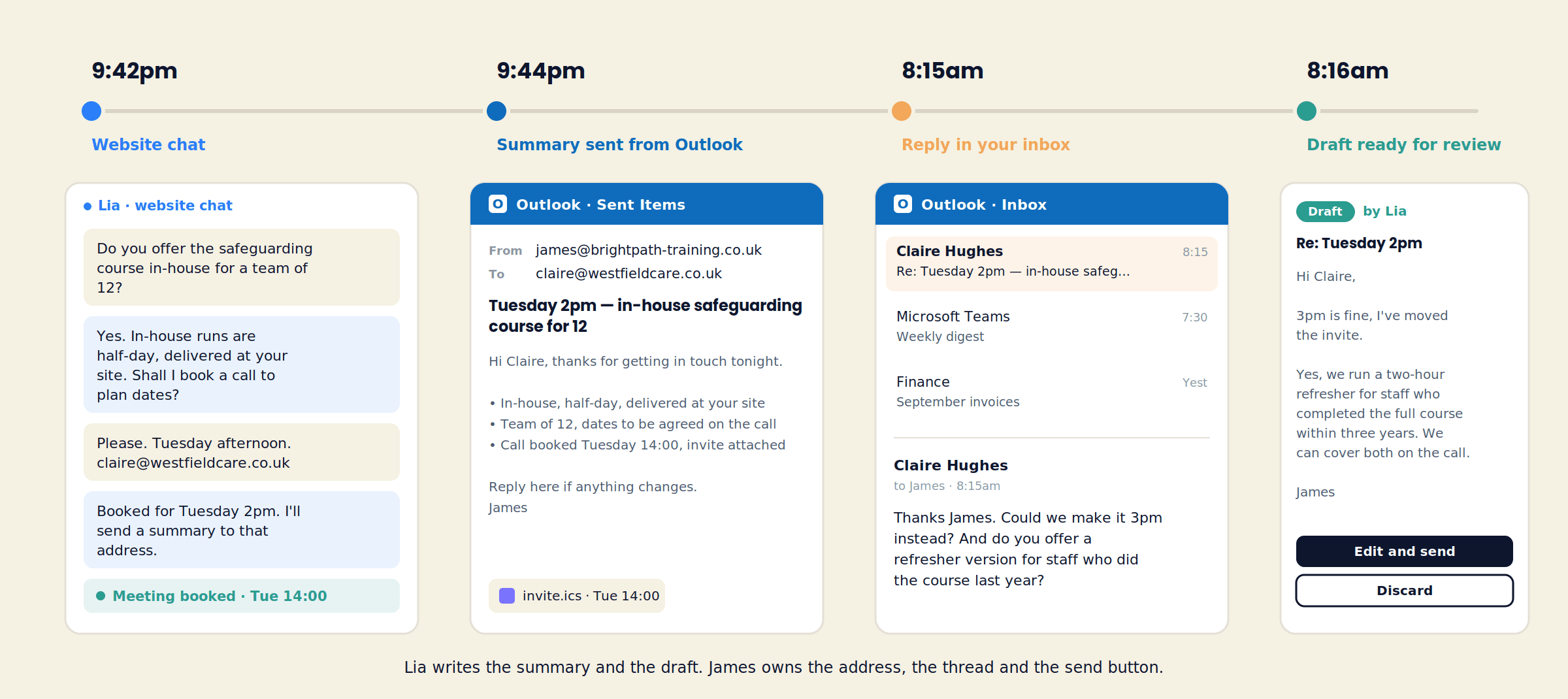
One enquiry, start to finish
From a 9:42pm Chat to a Reply in Your Inbox by 8:15
A training provider's evening, the way it runs with Outlook connected.
9:42pm — the chat
Claire asks whether the safeguarding course can be delivered in-house for twelve staff. LIA answers from the course page, offers a planning call, and books Tuesday at 2pm against James's calendar.
9:44pm — the summary
An email leaves James's Outlook address: what was discussed, what was agreed, the invite attached, his name at the bottom. It is in his Sent Items when he opens Outlook in the morning.
8:15am — the reply
Claire answers the thread: can it be 3pm, and is there a refresher for staff who took the course last year? The message is in James's inbox, in the same conversation.
8:16am — the draft
LIA has read the reply against the chat and the course content and prepared an answer. James changes one line, presses send, and the exchange is added to Claire's lead record.
What the connection does
Two Jobs, Both in Your Name
After the conversation
Sends the summary from your Outlook address
For any website chat or WhatsApp conversation where LIA captured an email, a short recap is sent from the connected Outlook account: the questions answered, the price or dates quoted from your content, the meeting booked, the invite attached. It is written from the conversation, signed with your name, and stored in Sent Items like any message you wrote yourself.
When they respond
Drafts your reply for review
A reply to the summary arrives in your inbox. ConnectLoop reads it with the original conversation, the lead's visit history and your approved content in view, and prepares a draft answer. You edit it, send it or discard it. The reply goes out from your address, and the thread is saved to the lead.
Built for Microsoft 365
What Microsoft 365 Teams Ask First
Teams on Microsoft 365 usually have an IT owner, a tenant policy and a shared way of working. The integration is designed with those in mind.
“Does it need admin consent?”
You sign in with your Microsoft work account. If your tenant requires an admin to approve new apps, the admin approves ConnectLoop once and every team member can connect after that.
“Which permissions does it use?”
Sending mail as the connected user and reading replies in the follow-up threads. It does not ask for access to the rest of the mailbox.
“Will it show in Outlook on the phone?”
Yes. The summary is a normal sent message and the reply is a normal received one, so they appear in Outlook on desktop, web and mobile, and in the conversation view.
Outlook Calendar alongside
Connect Outlook Calendar as well and the meeting LIA books is a real event on the connected calendar, with the Teams or Google Meet link added when either is connected. The invite in the summary email is the same event.
Outlook and Outlook Calendar are separate connections; each counts as one connected app.
Two Outlook connections
Which Outlook Integration Do You Need?
ConnectLoop offers Outlook in two forms. Pick by where the conversation starts.
This page
Outlook
The conversation starts on your website or WhatsApp. LIA sends the summary from your Outlook address afterwards and drafts replies when the visitor answers. You send.
Separate connection
Outlook for Email Agent
The conversation starts as an email to your inbox. LIA answers it as a channel, from your approved content, and hands over to a person when the conversation calls for it.
Many teams connect both. Each counts as one connected app.
Setup
Connect Outlook in Three Steps
- 1
Sign in with Microsoft
In Connected Apps, filter to Email and find Outlook. Click Connect, sign in with the Microsoft account the follow-ups should come from, and accept the permissions. The badge turns green.
- 2
Pick the sender
Connect the account of the person who takes the calls. With tag routing, each lead's summary is sent from the team member it was routed to.
- 3
Test the thread
Use Live Test, leave an email, and check Sent Items. Reply from another account and watch the draft appear on the lead in ConnectLoop.
Outlook counts as one connected app against your plan limit: 2 on Free, 4 on Launch, 9 on Growth, unlimited on Scale. Disconnect any time; sent messages stay in Outlook.
Questions
Outlook Integration FAQ
Both. A Microsoft 365 work account on your own domain is the usual choice for a sales team; a personal Outlook.com account connects the same way.
The conversation summary is sent after a chat where the visitor gave an email. Any reply to what the visitor writes back is drafted for you and goes out only when you send it.
Your Microsoft 365 admin approves ConnectLoop once from the consent prompt. After that, team members connect their own accounts without further approval.
Yes. It is sent through your account, so it appears in Sent Items and in the conversation view in Outlook on desktop, web and mobile.
On the lead in ConnectLoop, alongside the original chat and the visitor's reply. Edit, send or discard from there; the reply goes out from your Outlook address.
Yes. Connect each account and use tag routing; the summary for each lead is sent from the team member it was routed to.
Outlook Calendar is a separate connection. Connect it and the meeting LIA books becomes an event on that calendar, with the invite attached to the summary.
Messages already sent stay in Outlook. Conversations and leads stay in ConnectLoop.
Related
Microsoft 365 Teams Usually Add These
- Outlook CalendarMake the invite in the summary a real event.
- Microsoft TeamsAdd the Teams link to every meeting LIA books.
- Outlook for Email AgentLet LIA answer the enquiries that arrive by email.
Connect Outlook and Keep Every Follow-Up in Your Own Sent Items
Sign in with Microsoft. The next visitor who books with LIA gets a summary from you, and their reply comes back to your inbox with a draft ready.
Free plan, no card required · Priced on conversations, not credits